

Using Sample Data: The examples on this page use fields from our sample dataset. Download it and create an evaluation with it to follow along with this tutorial.
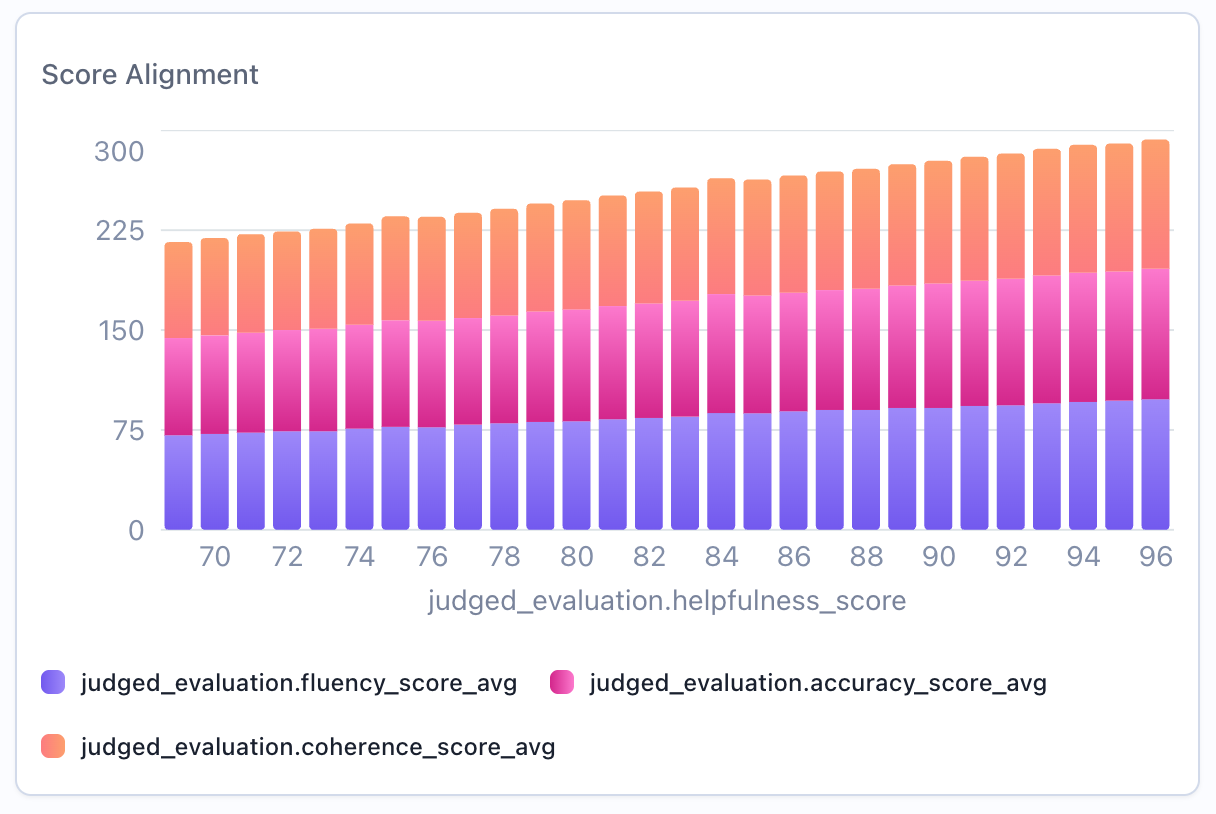
When to Use
Use histogram widgets to:- Show value distributions (groups data by distinct values)
- Visualize frequency counts or aggregated metrics
- Identify patterns in numerical data
- Display aggregated data in a distribution format
Configuration
Required Fields
string
required
Widget display name shown on the dashboard
string
required
Must be set to “histogram”
object
required
SeriesQuery selecting the column
X-Axis Configuration (One Required)
You must provide eitherx_column or x_column_group, but not both:
string
Single column name to group by for the x-axis. The histogram displays distinct values from this column.Example:
"overall_score" - groups by each score value (75, 80, 85, etc.)string[]
Array of column names for multi-dimensional grouping. Creates separate distributions for each combination.Example:
["agent_name"] - creates separate distributions for each agentNote: Multi-dimensional grouping creates overlaid or stacked distributions for comparison.Optional Config Fields
boolean
default:"true"
Controls whether multiple distributions are stacked or overlaid.
true(default): Stack distributions on top of each otherfalse: Overlay distributions for easier comparison
boolean
default:"false"
When
true, each bar’s value is rendered directly on the chart so you don’t have to hover to read it.Value labels apply to single-series histograms only (those with one aggregation). They are ignored on multi-series histograms, which use a legend instead.Query Requirements
Histogram widgets require a SeriesQuery with:- Select the column you want to group by (becomes the x-axis)
- Can include aggregations (
COUNT,SUM,AVG, etc.) for the y-axis - If no aggregation is specified,
COUNTis used by default - Can include
filterto narrow the dataset
Creating in the UI
1
Open Widget Creator
From your dashboard, click “Add Widget” and select “Histogram”
2
Enter Title
Give your histogram a descriptive name (e.g., “Score Distribution”)
3
Select Column
Choose the column to group by (this will be the x-axis)
4
Add Aggregations (Optional)
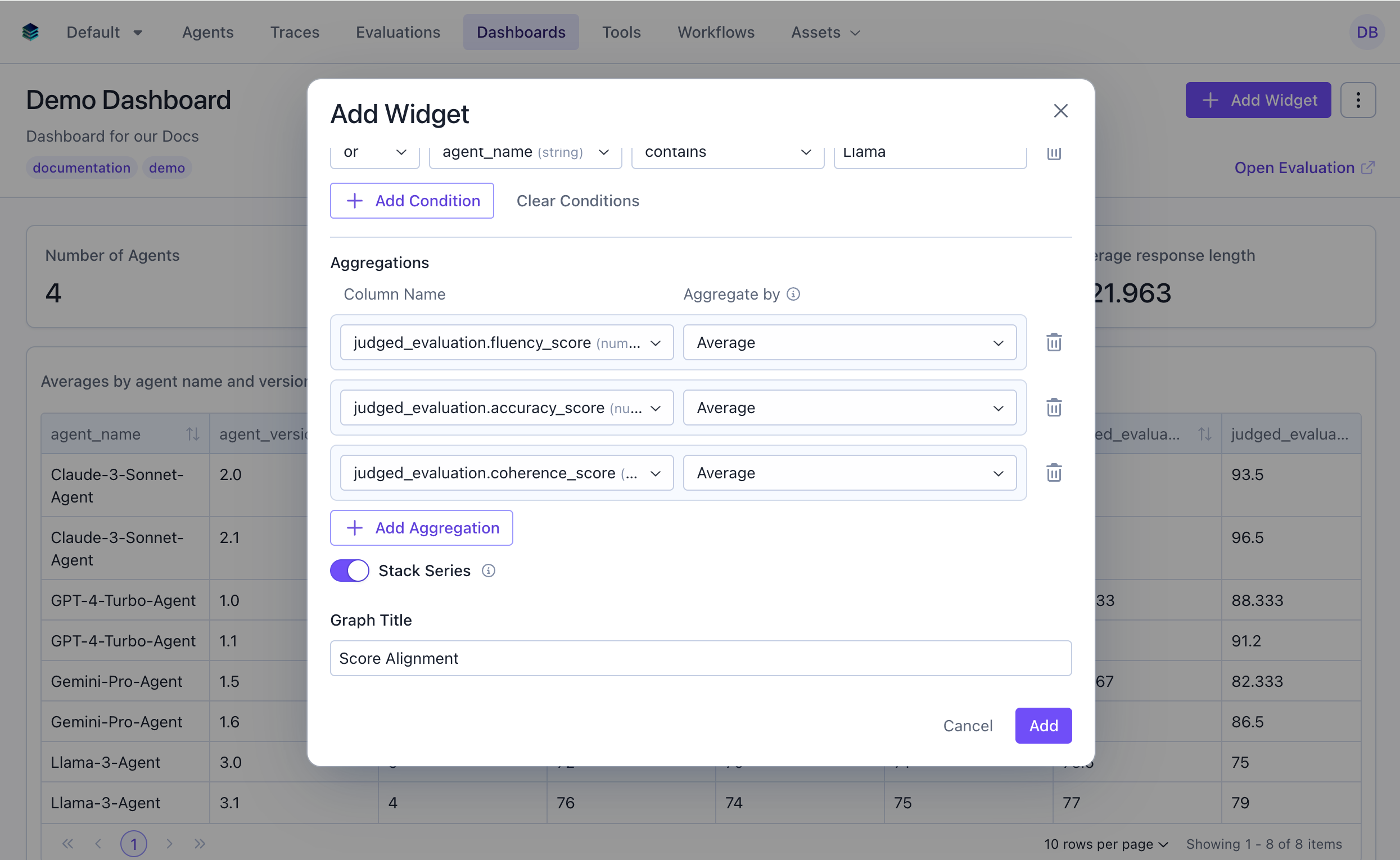
COUNT is used by default.5
Add Filters (Optional)
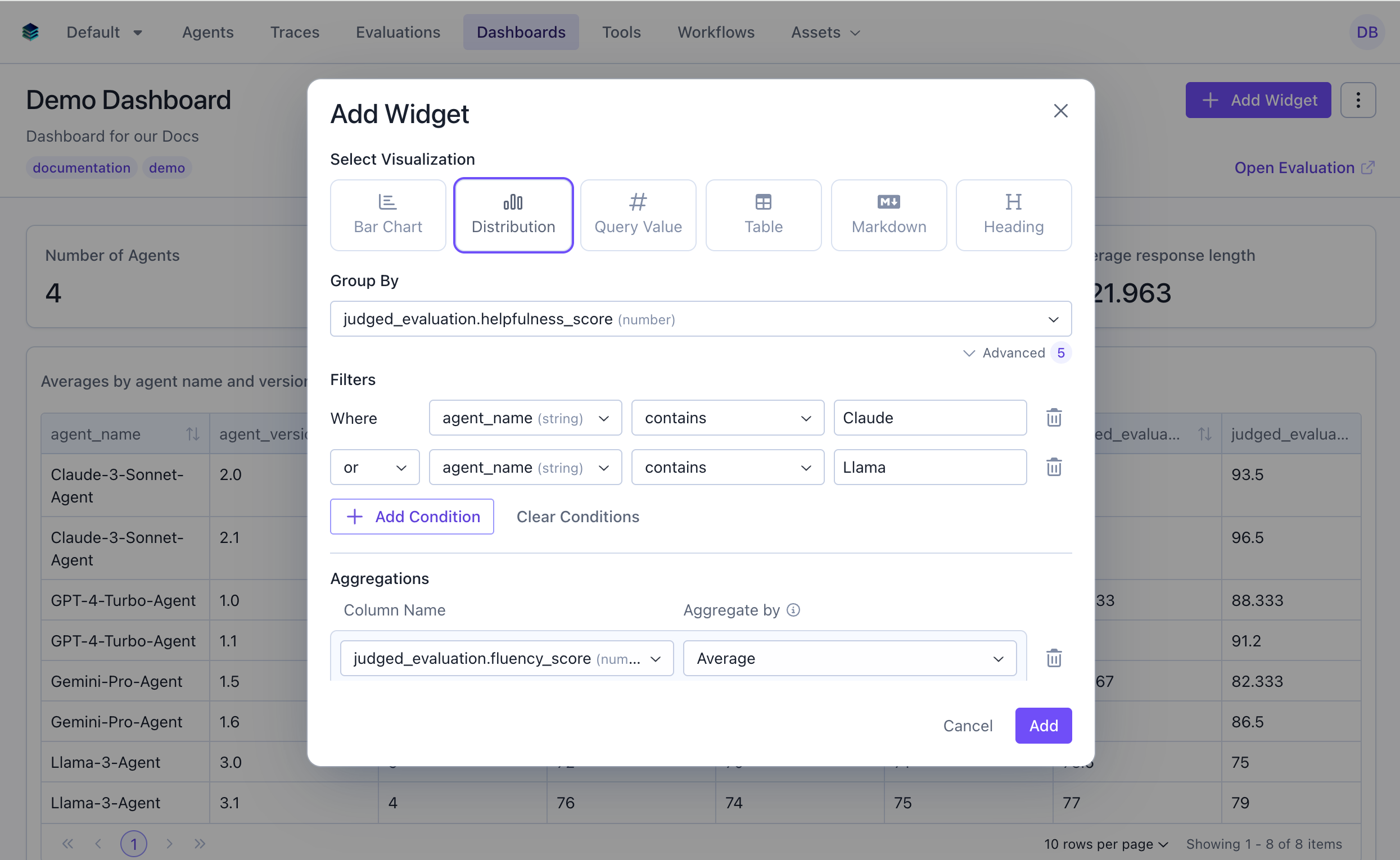
6
Show Values on Bars (Optional)
For single-series histograms, toggle Show values on bars to render each bar’s value directly on the chart. This sets
config.show_value_labels.7
Create Widget
Click “Add” to generate the histogram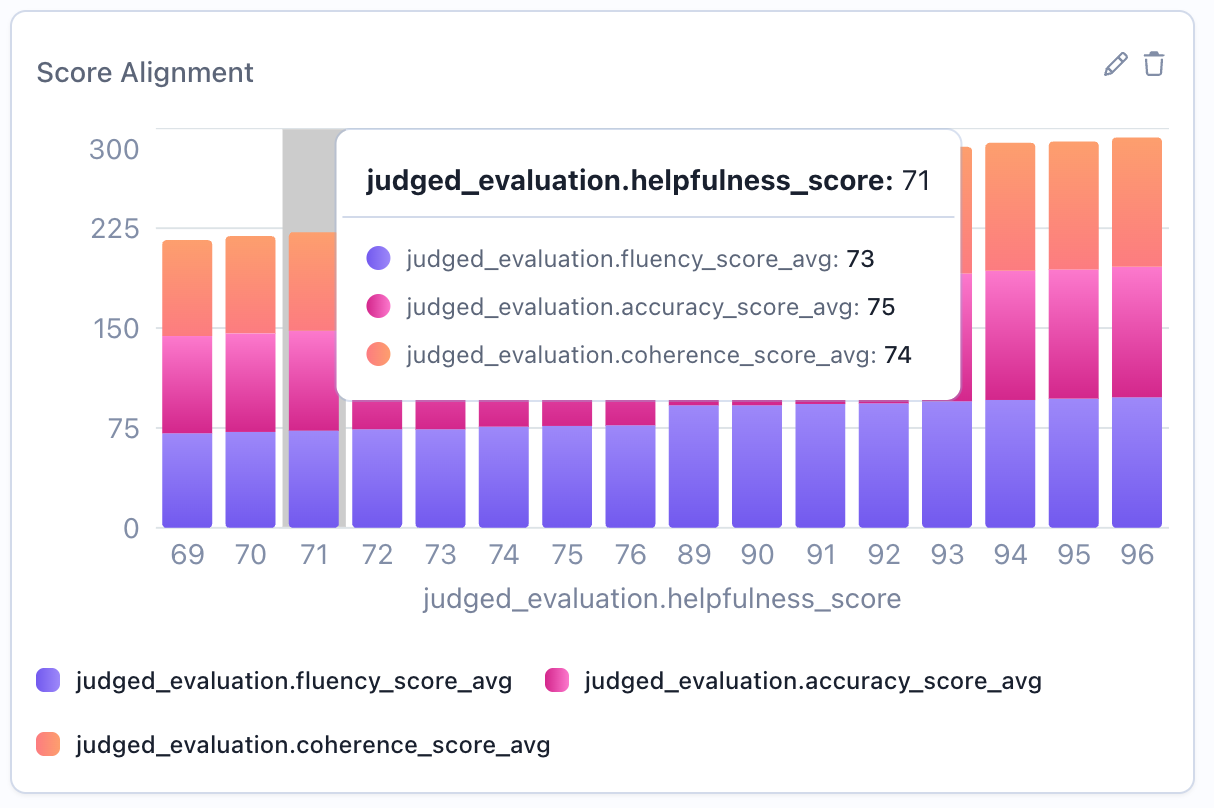
Output Format
Histogram widgets return grouped data:Example Use Cases
Use Case 1: Overall Score Distribution
Visualize how overall scores are distributed across all evaluations. This will by default show the count of evaluations for each score value.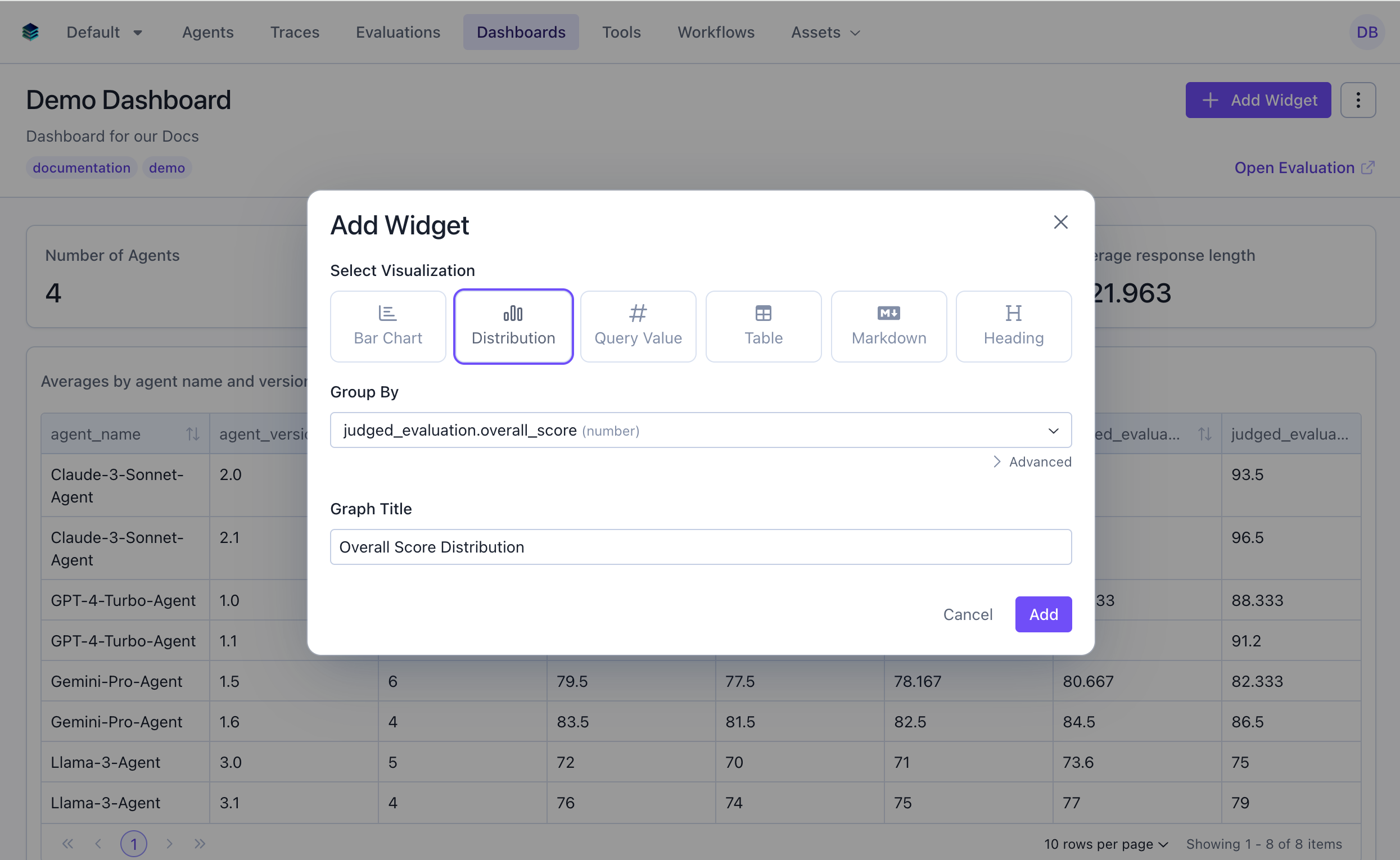
Use Case 2: Technical Task Score Distribution
Show distribution for evaluations in the technical category only.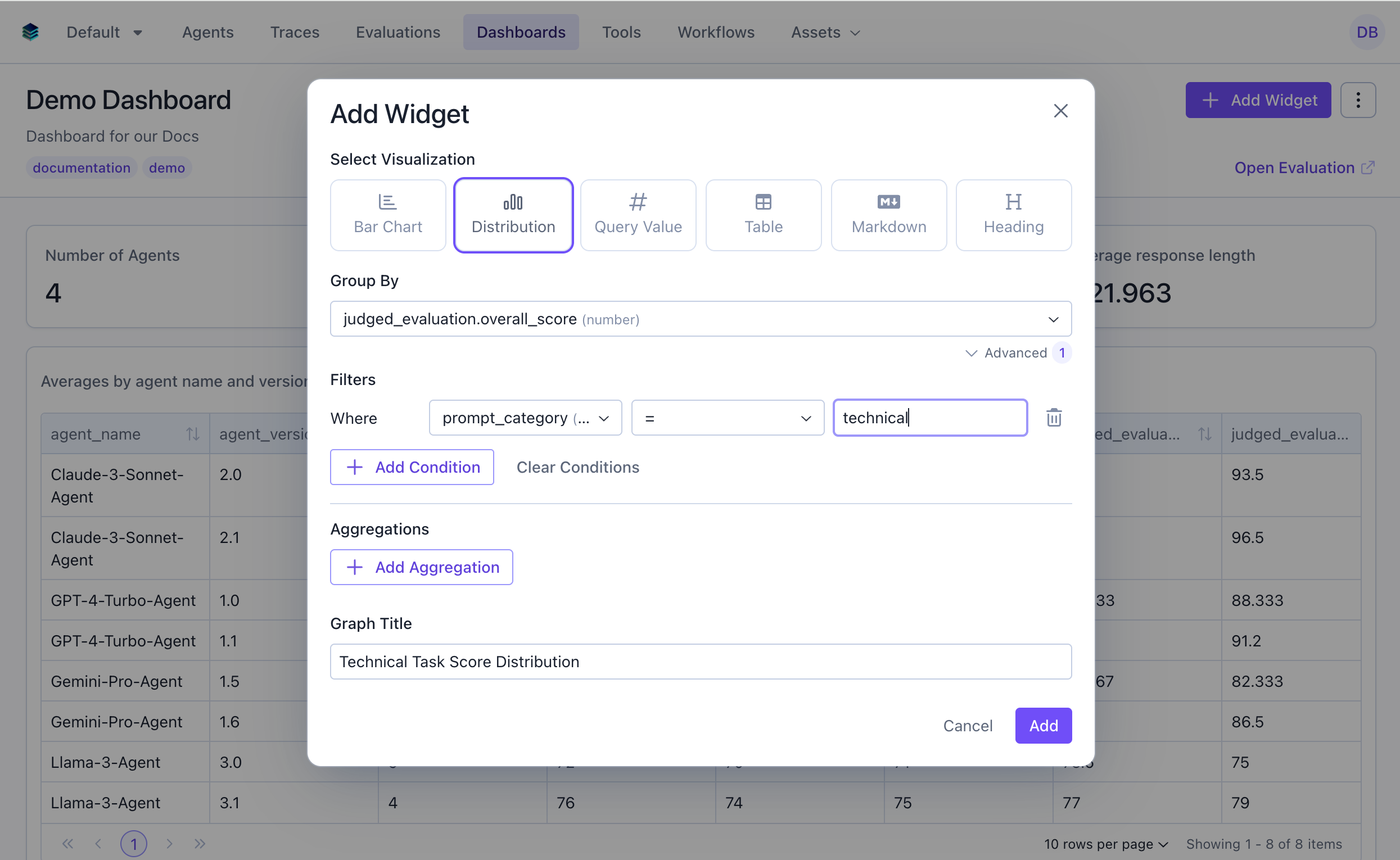
Use Case 3: Comparing Distributions Across Categories
Create overlaid histograms to compare score distributions across different scores.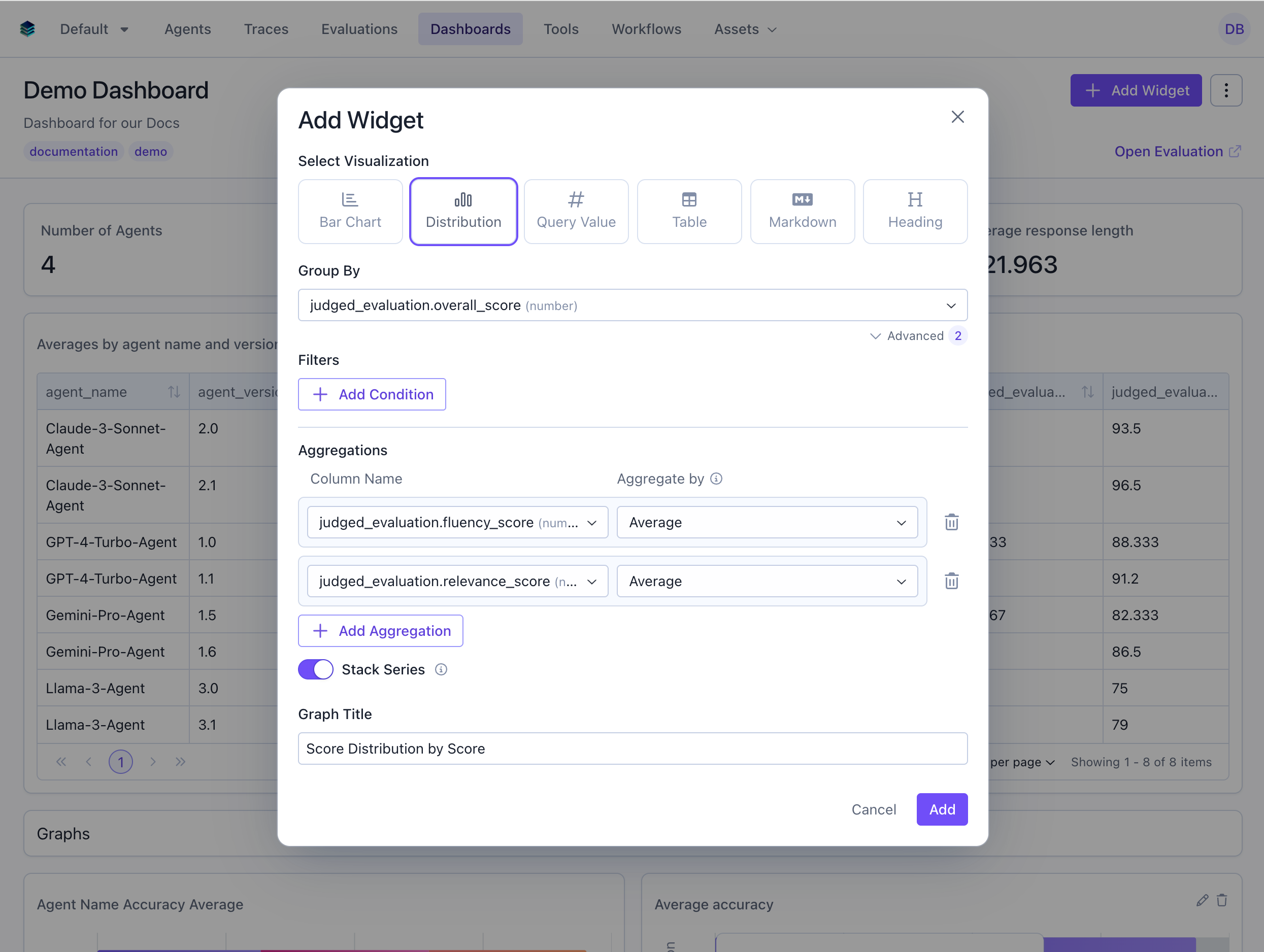
Stacked vs Overlaid Distributions
When comparing distributions across groups, you can control visualization style:Overlaid Distributions (Unstacked)
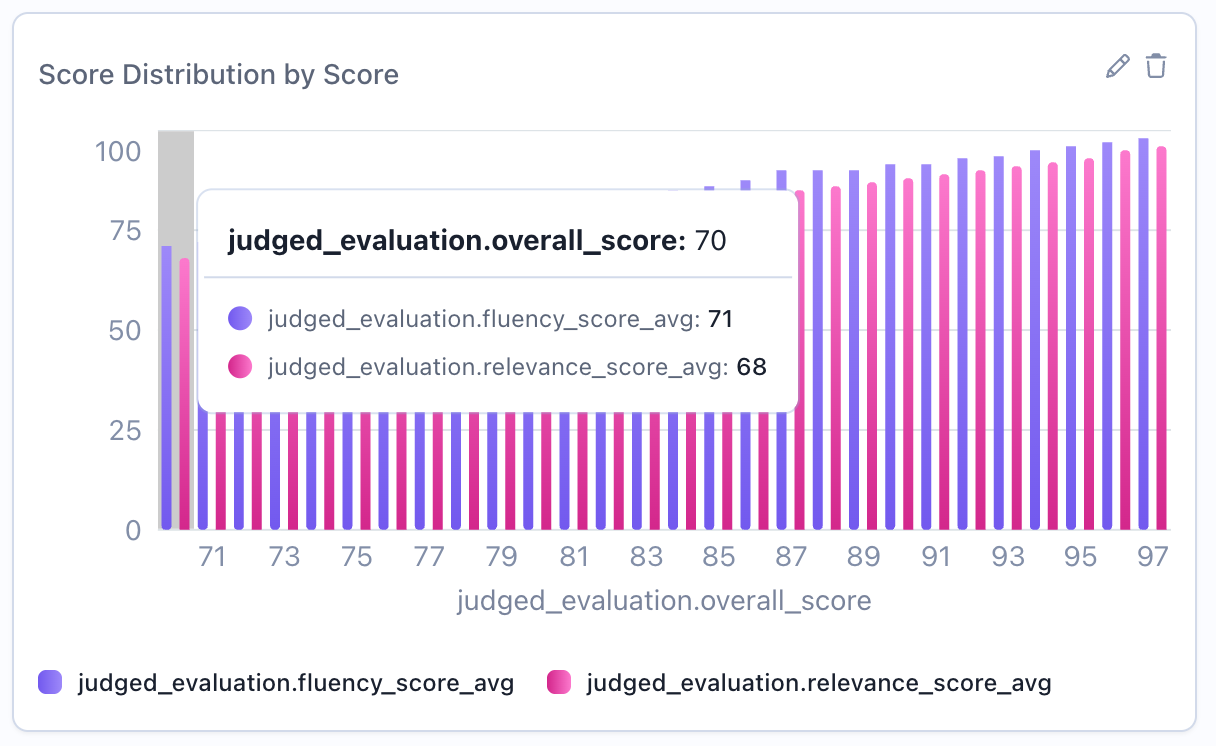
- Comparing distribution shapes directly
- Identifying differences in peaks and spread
- Seeing all distributions simultaneously
Stacked Distributions
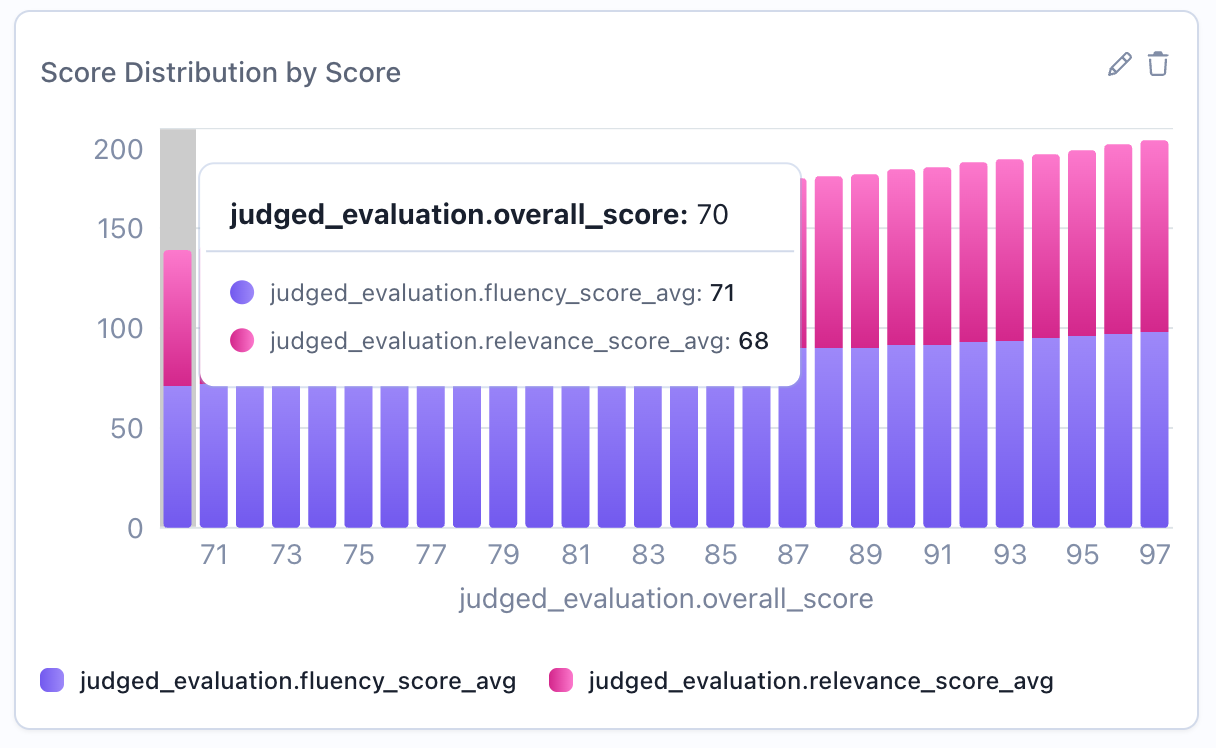
- Showing total counts across all groups
- Part-to-whole relationships
- When cumulative view is meaningful
Display Behavior
Histograms apply the following formatting automatically. These behaviors are built into the rendering, so there are no extra config fields to set.Per-category colors
When a histogram has a single series and more than one bucket, each bar is given a distinct color from a rotating palette, making individual buckets easier to tell apart. Histograms with multiple series keep one consistent color per series instead, so the series stay comparable across buckets.Humanized column names
Raw column names are converted to readable Title Case in axis labels, the legend, and tooltips (for example,overall_score becomes “Overall Score”). Aliases that already contain spaces are shown unchanged, so you can override the displayed text by aliasing a column in your query.
Related Documentation
- Bar Chart Widget - For categorical distributions
- Metric Widget - Show percentiles and statistical measures
- Table Widget - Detailed numerical breakdowns
- Query Language - Filter and column syntax