

Using Sample Data
To follow along with this tutorial, you can use our sample evaluation dataset containing 40 agent evaluation items with realistic scores and metadata. Upload the sample data to your account and create an evaluation with it. Download Sample Data:Download sample-evaluation.csv
Sample dataset with 40 evaluation items across 4 agents (GPT-4, Claude-3, Gemini-Pro, Llama-3)
agent_name: Model being evaluated (GPT-4-Turbo-Agent, Claude-3-Sonnet-Agent, etc.)*: Nested scores (overall_score, accuracy_score, relevance_score, coherence_score, helpfulness_score, fluency_score)task_type: Type of task (question_answering, summarization, code_generation, analysis, translation, creative_writing)prompt_category: Category (technical, general, business, language, creative)
- Download the CSV file
- Create a new evaluation via the API or SDK:
- Follow the rest of this guide to create dashboards and widgets using this evaluation
The examples throughout this guide reference fields from this sample dataset. If using your own data, adjust the column names accordingly.
Prerequisites
Before creating a dashboard, you need either:- An existing evaluation with completed results, OR
- An evaluation group containing evaluations
Step 1: Create a New Dashboard
Via the UI
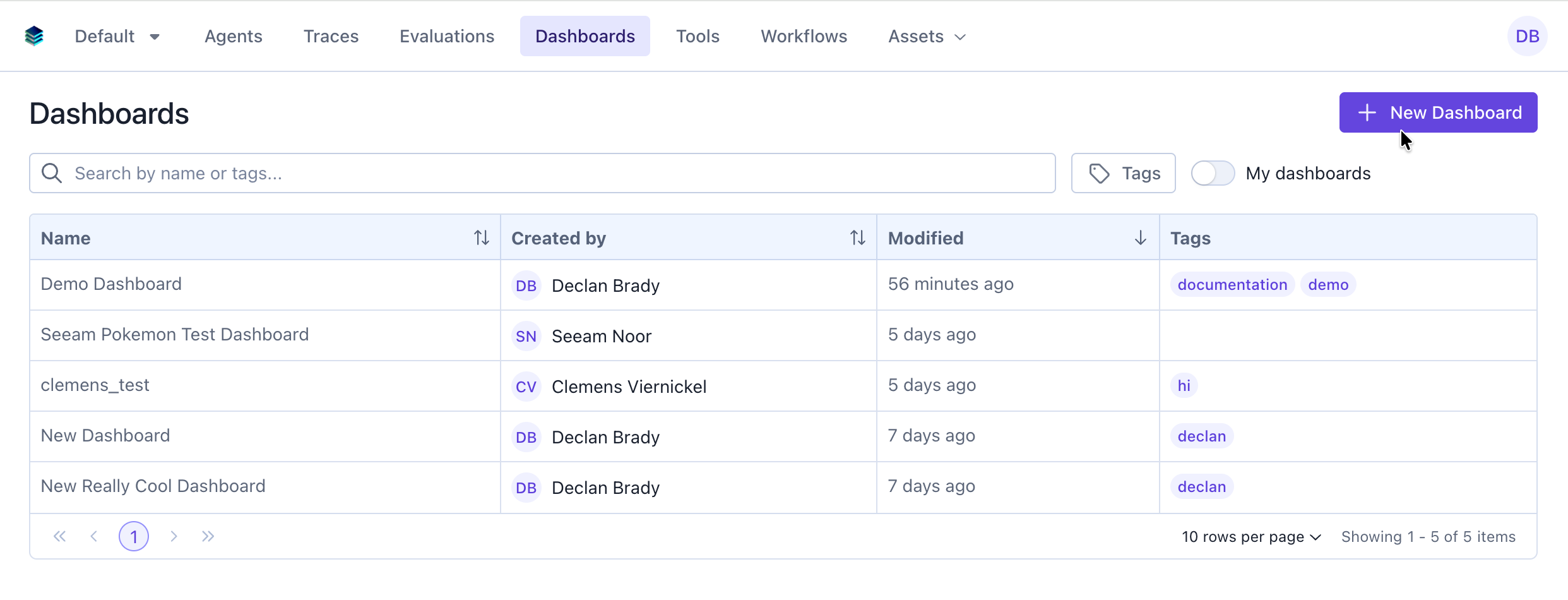
- Navigate your version of SGP (Dev SGP)
- Make sure the
evaluation-dashboards-enabledfeature flag is enabled for your account - Click the “Dashboards” tab
- Click the “New Dashboard” button
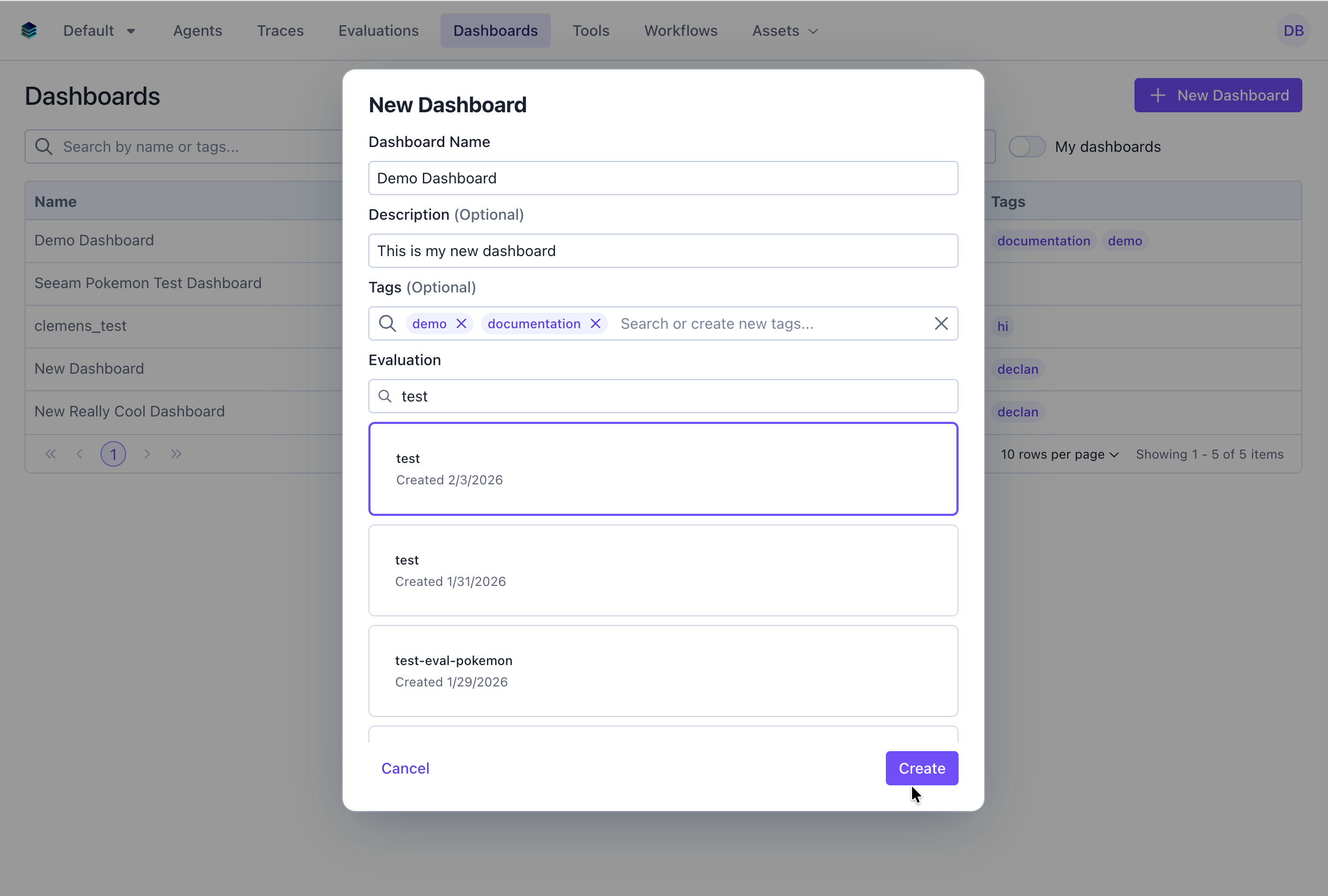
- Fill in the dashboard details:
- Name: Give your dashboard a descriptive name (e.g., “Model Performance Overview”)
- Description: Optional description explaining the dashboard’s purpose
- Tags: Optional tags for organization and filtering
- Evaluation / Evaluation Group: Select the evaluation or evaluation group you want to create a dashboard for
- Template (optional): Select an existing single-evaluation dashboard to copy its widget layout
- Click “Create” to save your dashboard
Via the SDK
Step 2: Add Your First Widget (Metric)
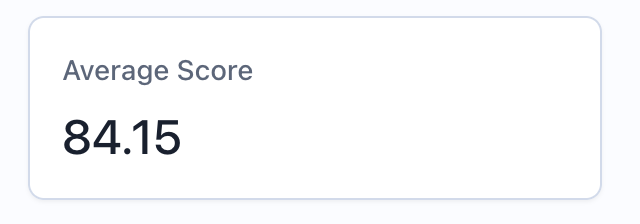
Let’s add a metric widget to display the average score across all evaluation items.Via the UI
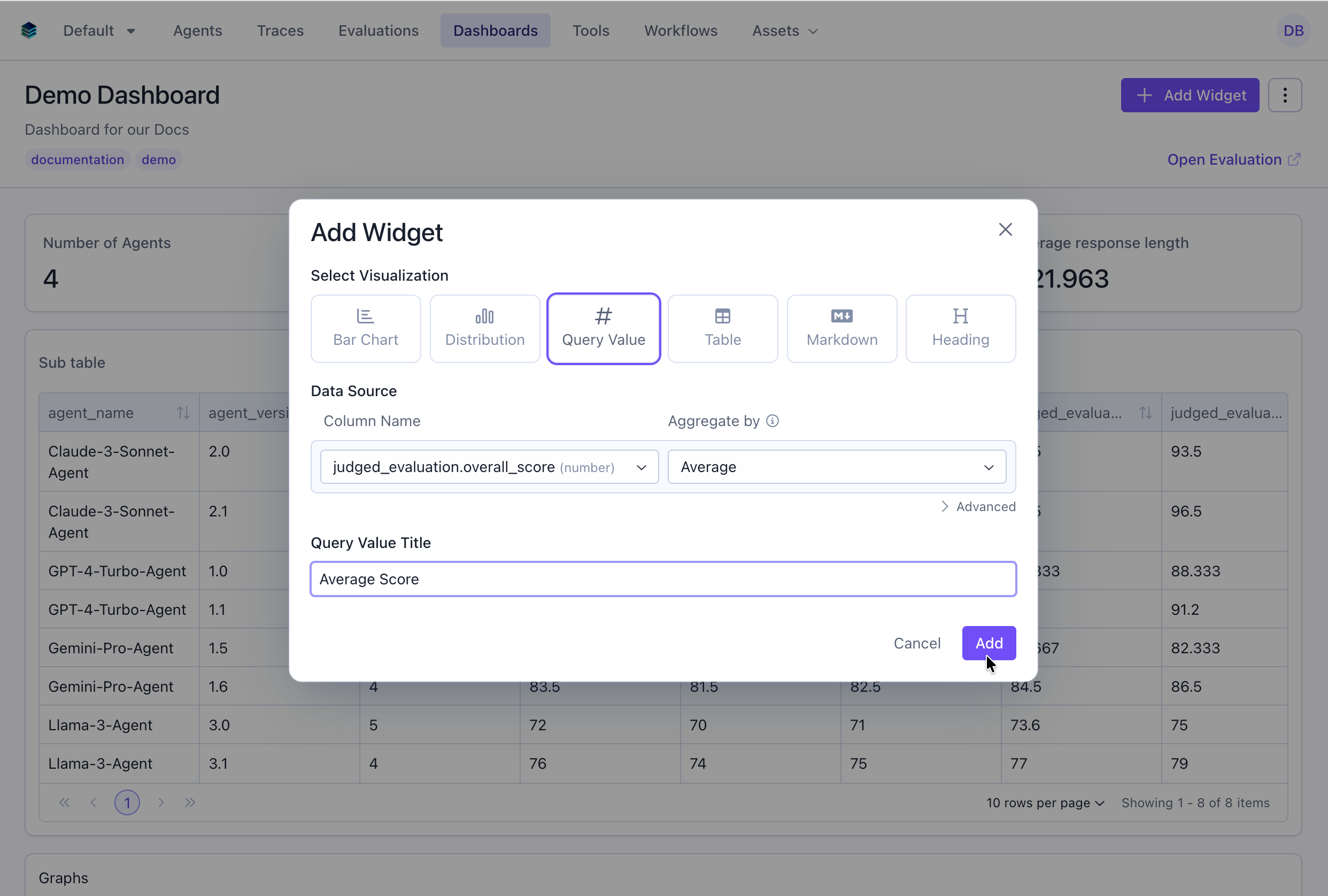
- From your dashboard page, click “Add Widget”
- Select “Query Value” as the widget type
- Configure the widget:
- Title: “Average Score”
- Query: Select the average of the “score” column
- Click “Add”
Via the API
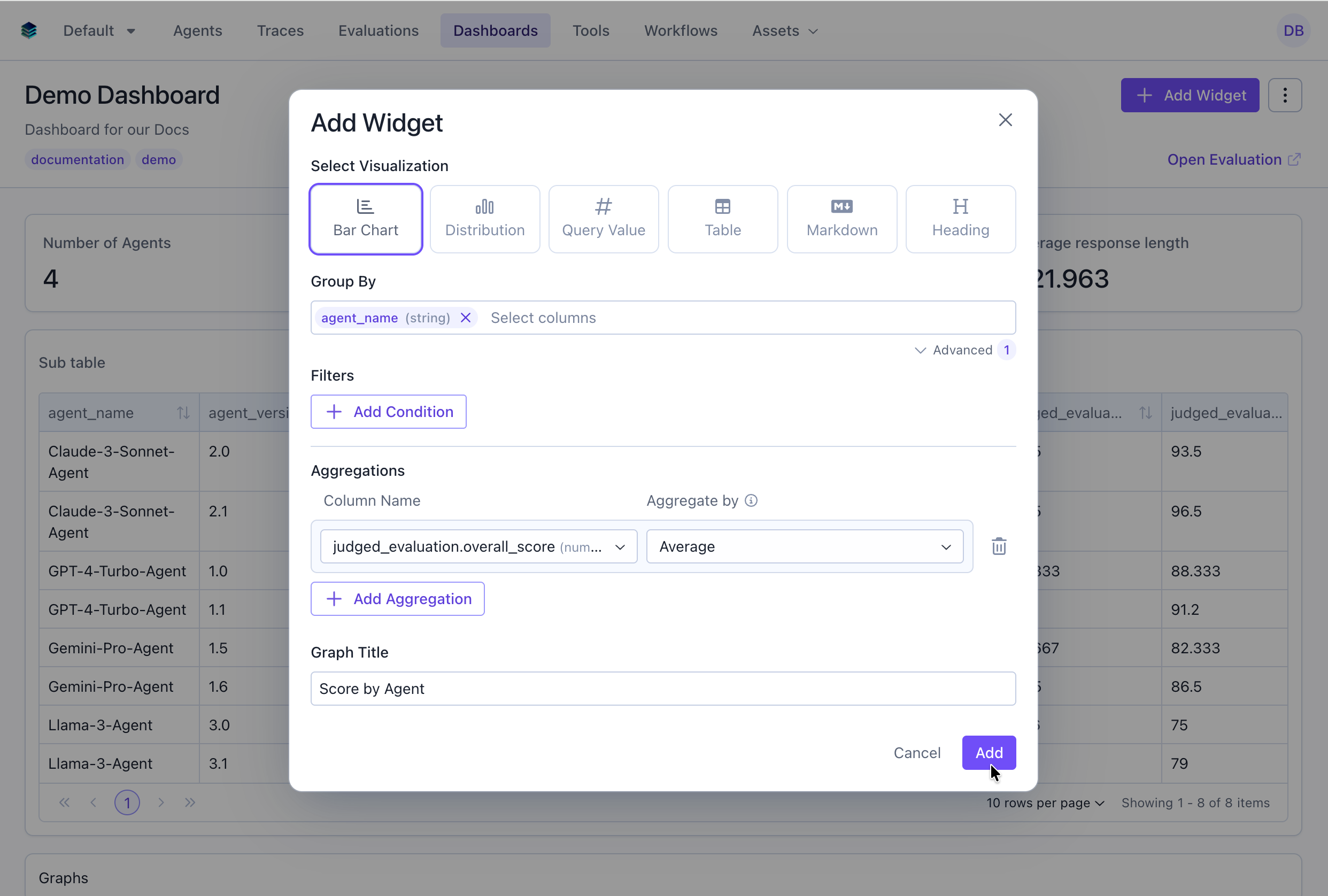
Step 3: Add a Chart Widget (Bar Chart)
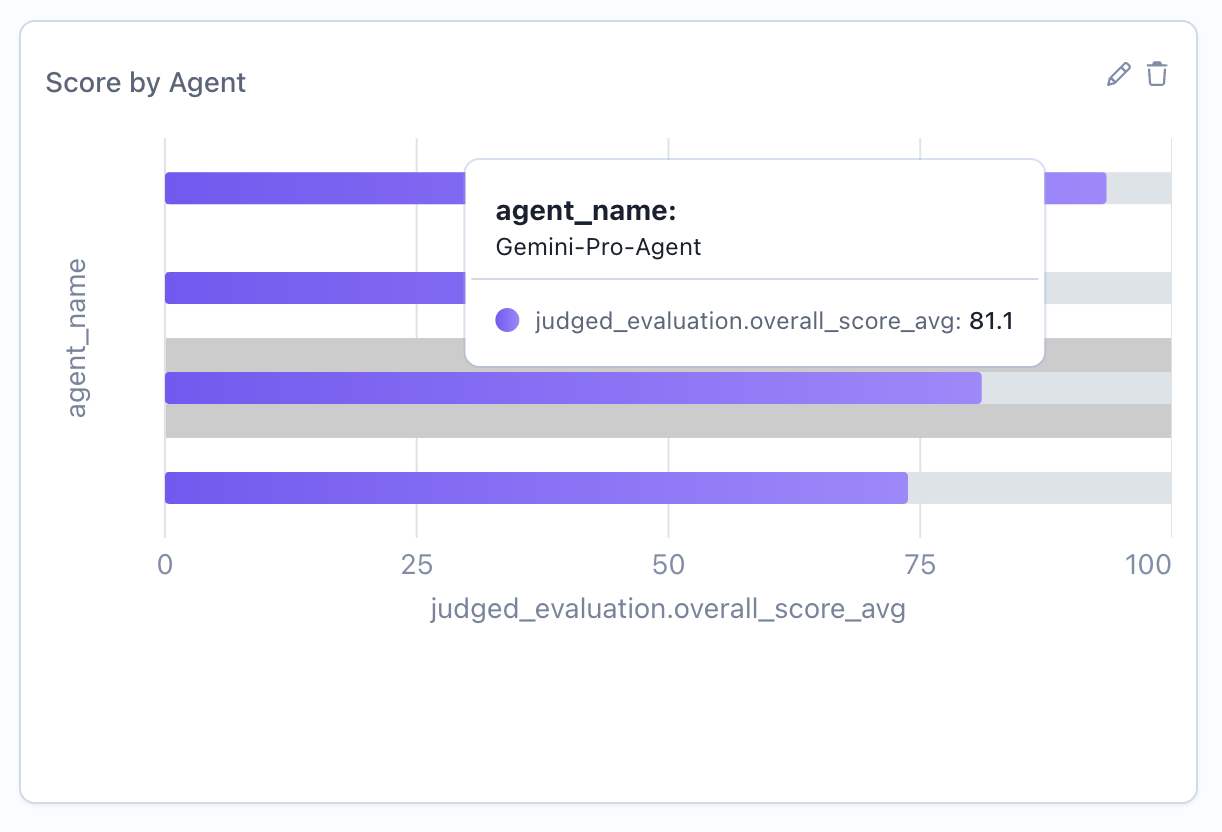
Now let’s add a bar chart to show score distribution across different models.Via the UI
- Click “Add Widget” again
- Select “Bar Chart” as the widget type
- Configure the widget:
- Title: “Score by Agent”
- Group By: Select “agent_name”
- Under the Advanced Options
- Add an aggregation, select “Average” on “overall_score”
- Click “Add”
Via the SDK
Step 4: Add Section Headers
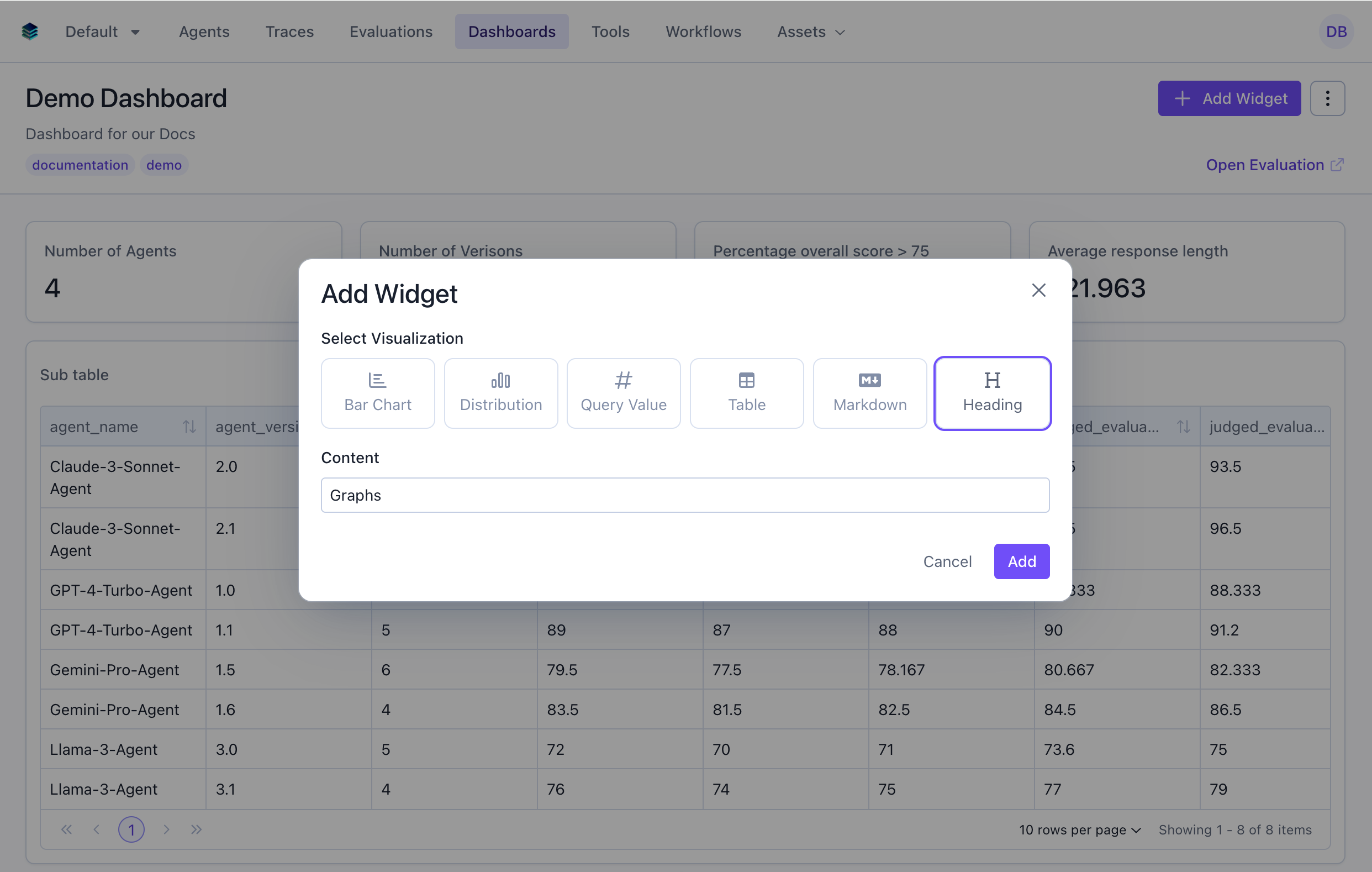
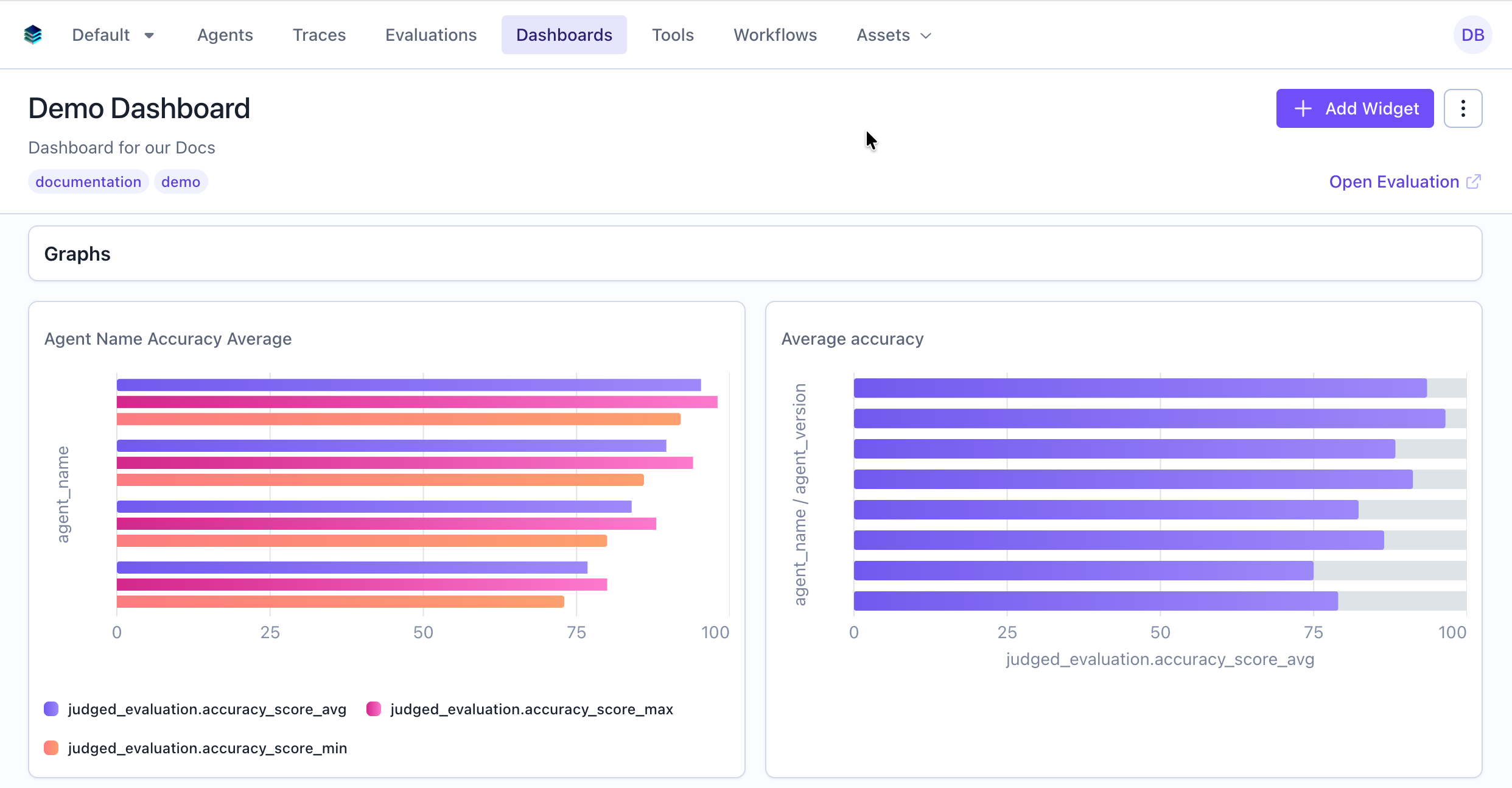
Use heading widgets to organize your dashboard into logical sections.Via the UI
- Click “Add Widget”
- Select “Heading” as the widget type
- Configure the widget:
- Title: “Graphs”
- Click “Add”
Via the SDK
Step 5: Organize and Configure Layout
Reorder Widgets
Arrange widgets in your preferred order by dragging and dropping in the UI, or update the widget order via the API:For evaluation group dashboards, see the dedicated Evaluation Group Dashboards guide for group-specific features like cross-evaluation queries, per-evaluation selection, and auto-recomputation.
Next Steps
- Learn about all available Widget Types
- Compare across evaluations with Evaluation Group Dashboards
- Capture Latest Snapshots of your evaluation group
- Master the Query Language for advanced filtering and aggregations
- Explore API Reference for programmatic query creation