


Getting started
You can access Compass in SGP (Scale GenAI Platform) through the Workflows tab. If you don’t see the tab on your SGP, please contact us. To start a workflow you must either import data or connect to a data source. Data sources available vary based on the connections set in the SGP instance you are running Compass on. You can set up newData Sources in the under the Assets tab.
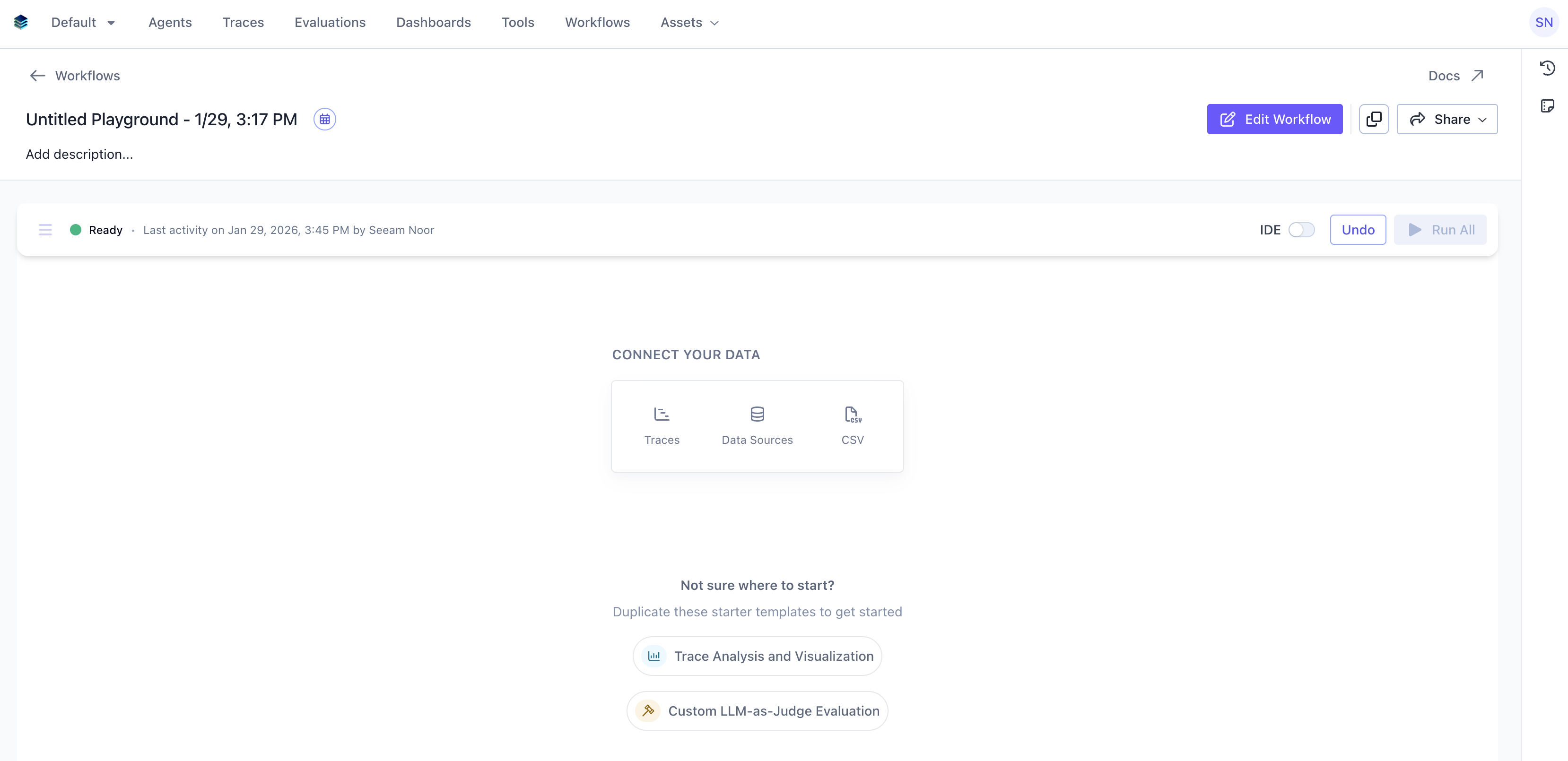
Duplicate or take inspiration from that are based on the most common workflows engineers run on Compass. Just press the copy button on the top right to duplicate a workflow.
Compass cards
The basic building block in Compass is called a card. Cards can produce data, transform data, or perform actions on data. When you start a new Compass session, you can add cards to build your workflow. Each card has its own interface appropriate for its function. Think of it like a form that you have to fill out to tell the card what you want it to do.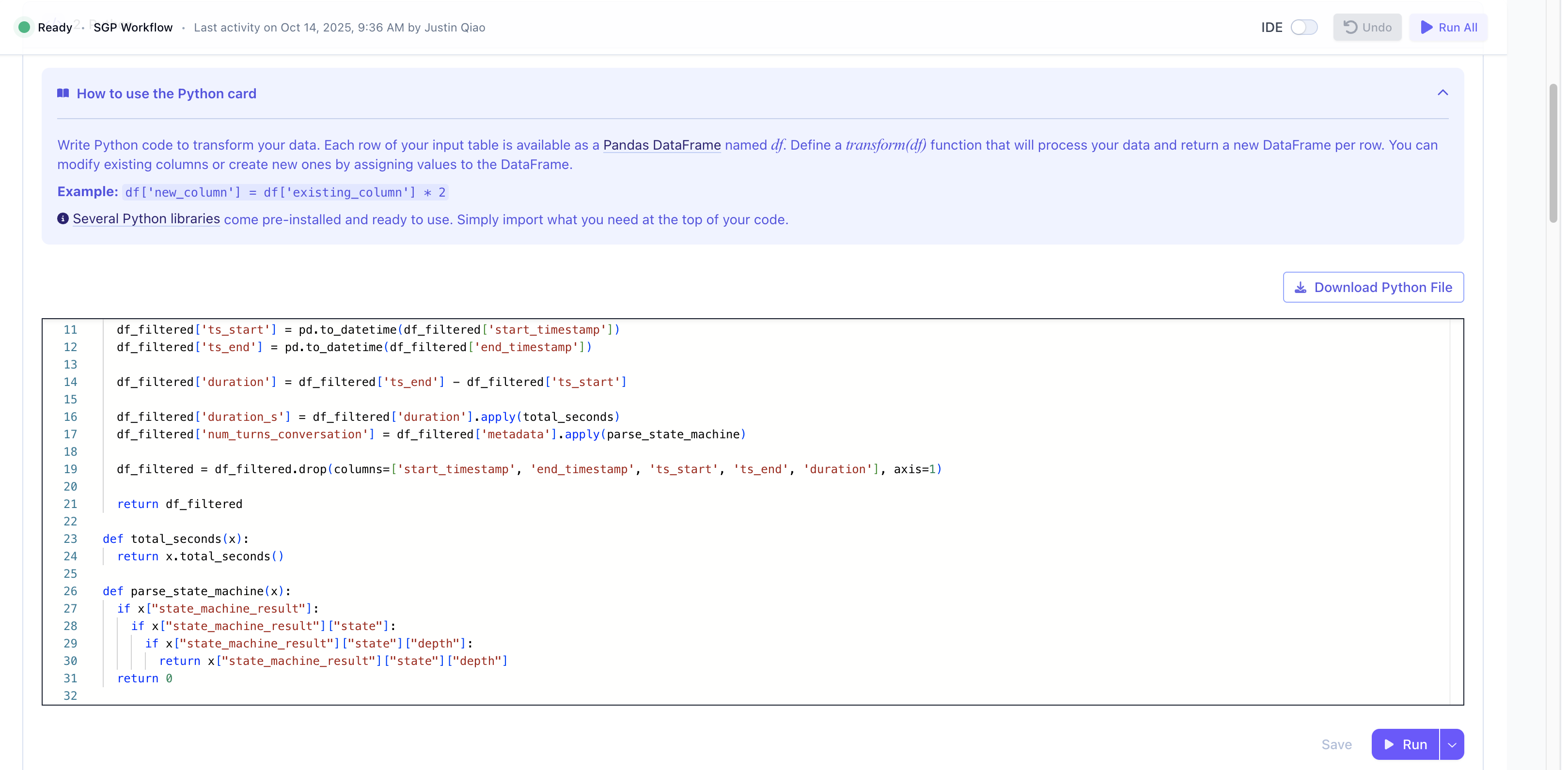
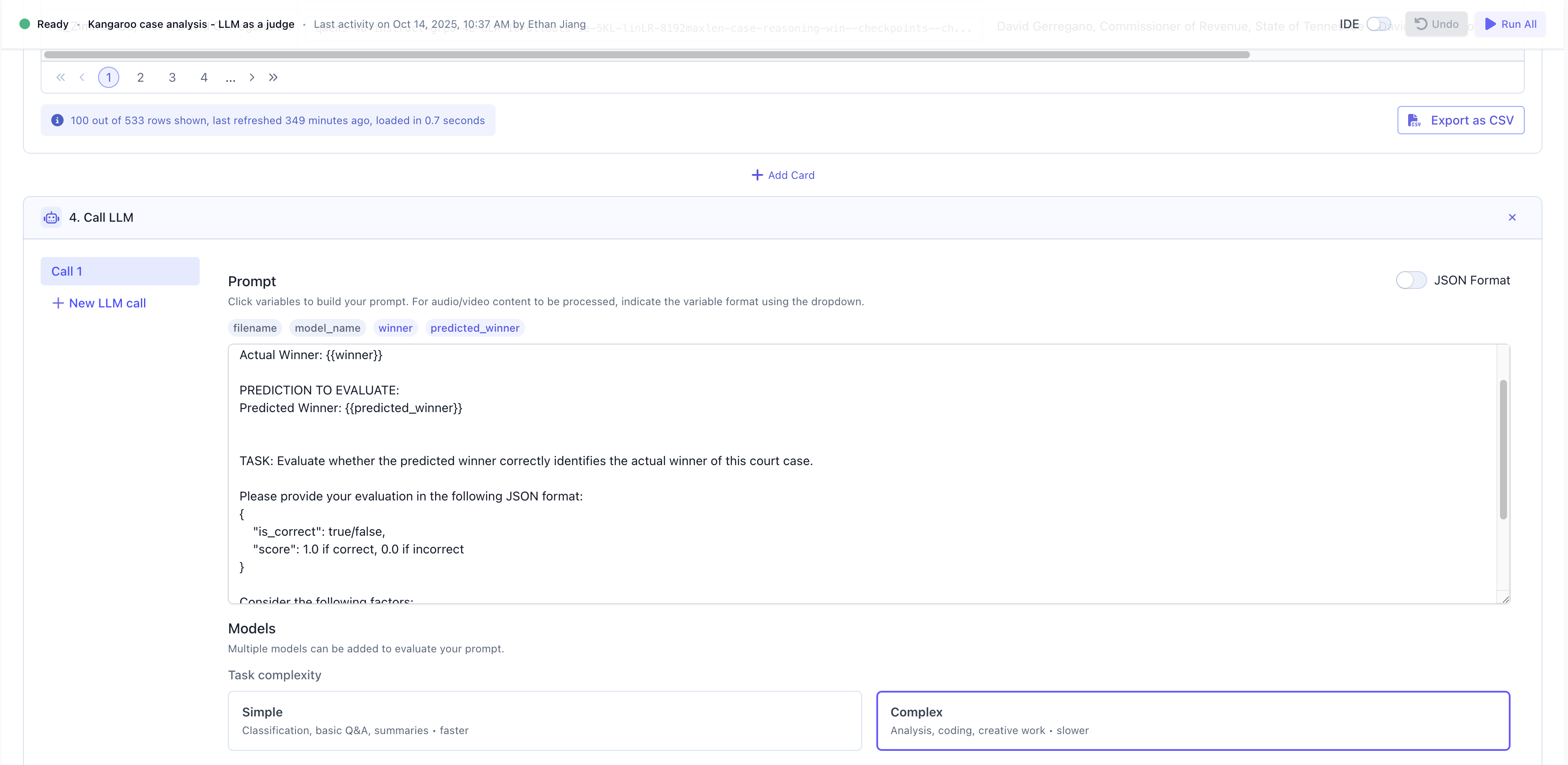
unique URL identifier that gives you persistent access to your session.

Evaluation that you can always access & monitor later, in cases you are running the evaluation on your agent traces periodically. You can also save it as an SGP Dataset that can be dowloaded and shared as a CSV as well.
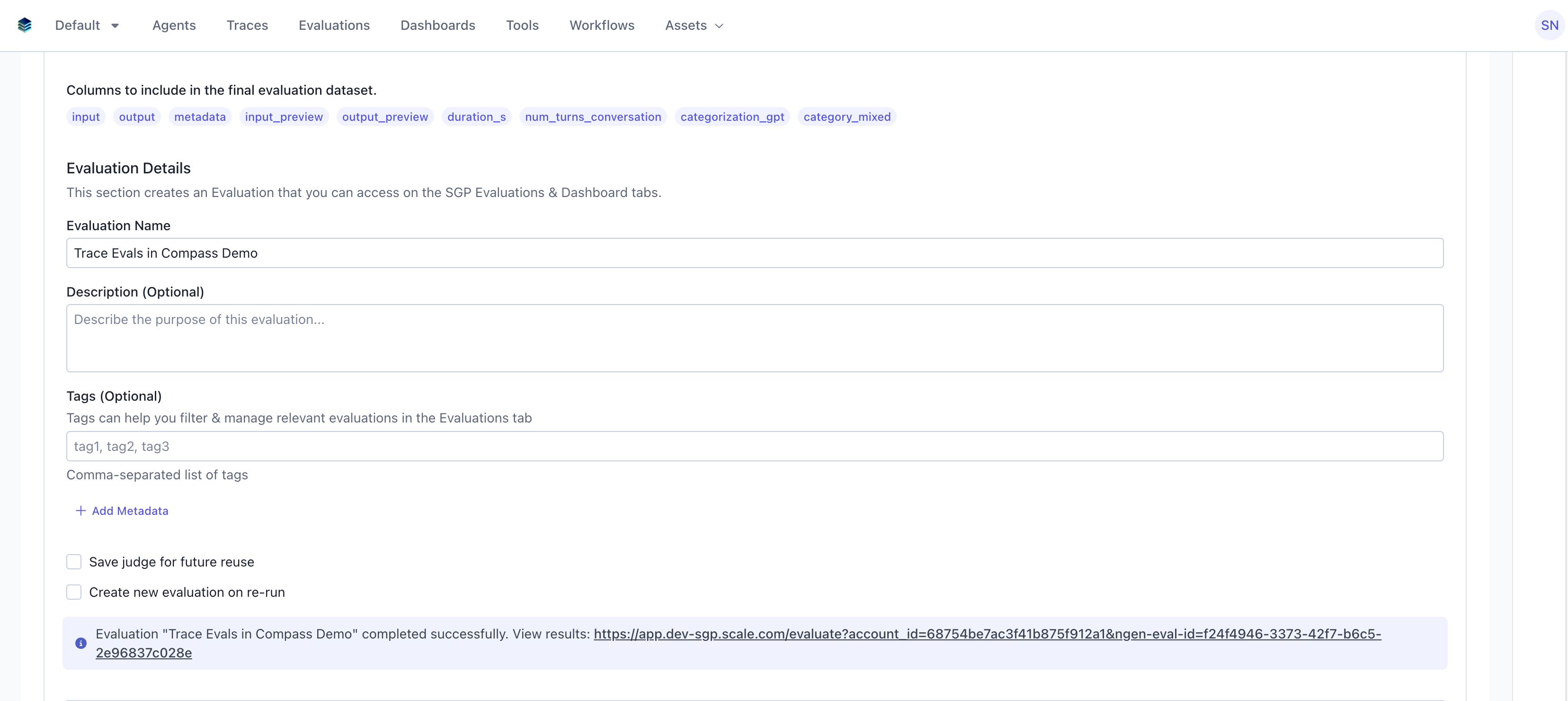
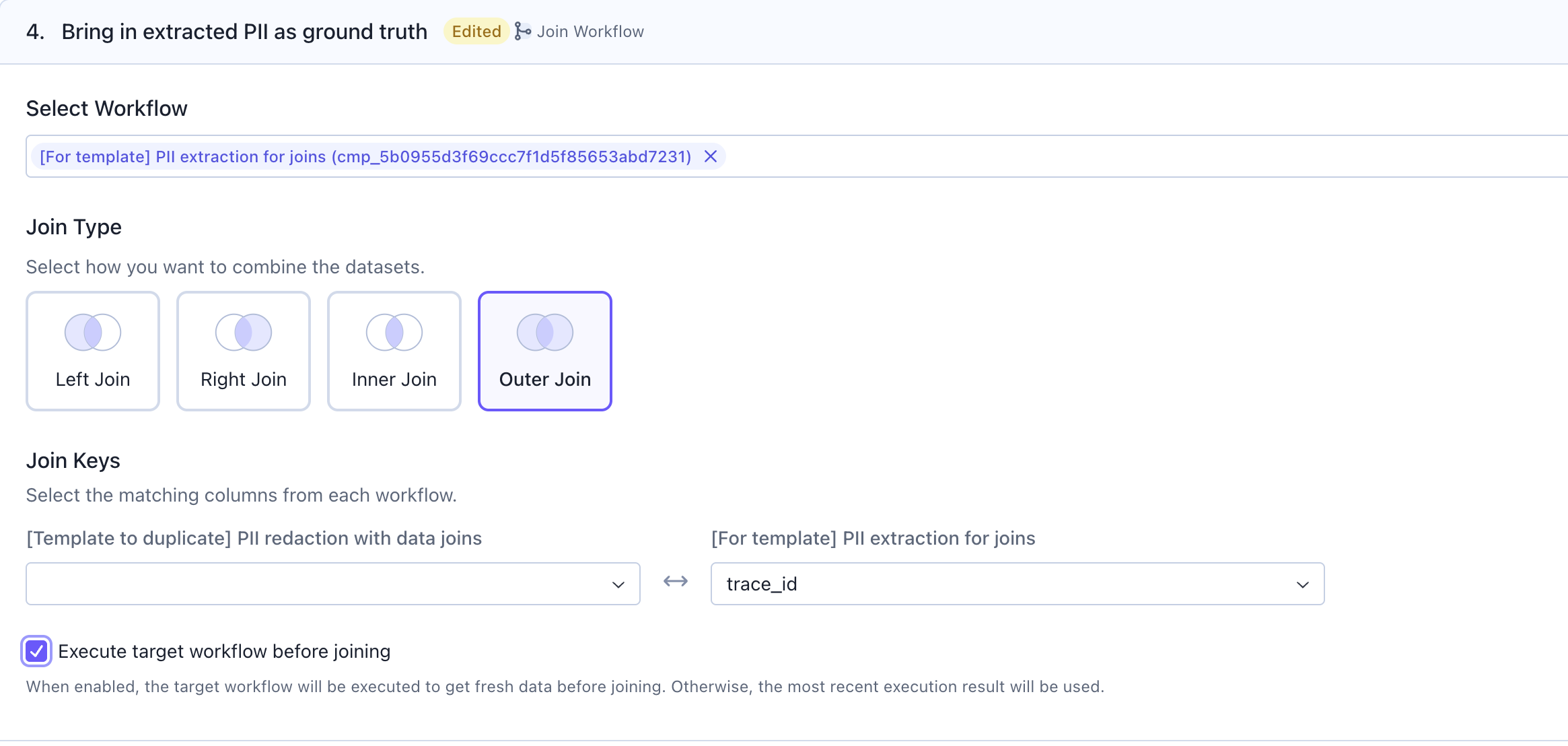
Join Workflow card to bring the output of another Compass workflow (dataframe) and join it with the output here. Attached image is from an example workflow where we had to bring the mock PII from another workflow to perform an evaluation on whether our agent was correctly implementing PII anonimization.
Key features & associated cards

- Importing data: Read data from sources like agent
Tracestab, aCSVupload, or queryable sources likePostgres,Snowflake,Mongo, orMS SQLdirectly. - Document parsing: Connect to cloud storage (Amazon S3, Azure Blob, Google Cloud Storage), parse unstructured documents using
Dex Parsecard, automatically create Dex projects, and push parsed data to Knowledge Base. See the Guide to Document Parsing with Dex in Compass for details. - Transforming data: Transform your data using custom
Pythoncode or simple cards likeselect columns,filteroraggregate. You can also useJoin Datato join the output from another Compass workflow into this workflow’s output (dataframe). - Call LLM or Agent: Generate output and traces against input from each row of your dataset via cards like
Call LLMorCall Agent. Compass allows you to call yourAgentexagents on SGP. - Analyze data: Evaluate your outputs using
LLM as Judgecard and access the evaluation anytime in the SGPEvaluationstab - Visualize data: Generate visualizations from your transformed dataset using the Chart
card. For deeper dives, export the data as anEvaluation& open in theDashboardstab. - Export the data: Export the data as
CSVor as aDataseton SGP. This dataset can be referred to in the Evaluations tab anytime. - Automate & monitor:
Schedulethe workflow to run hourly or daily. Monitor runs & get notified via Slack.
Schedule & monitor workflows
If you have a sequence of Compass cards that you run over and over, you can save them as a Compassworkflow so that you can easily load and re-run them again later.
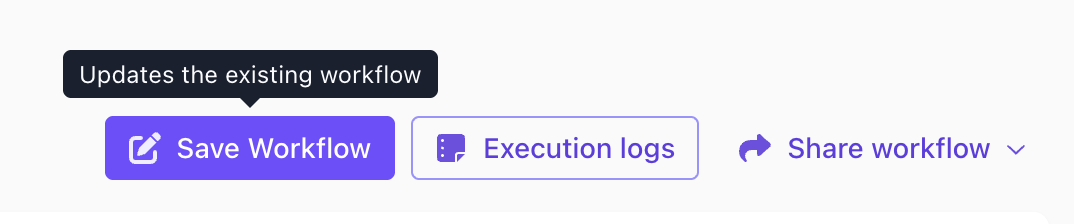
Share the workflow & add other editors for collaboration.
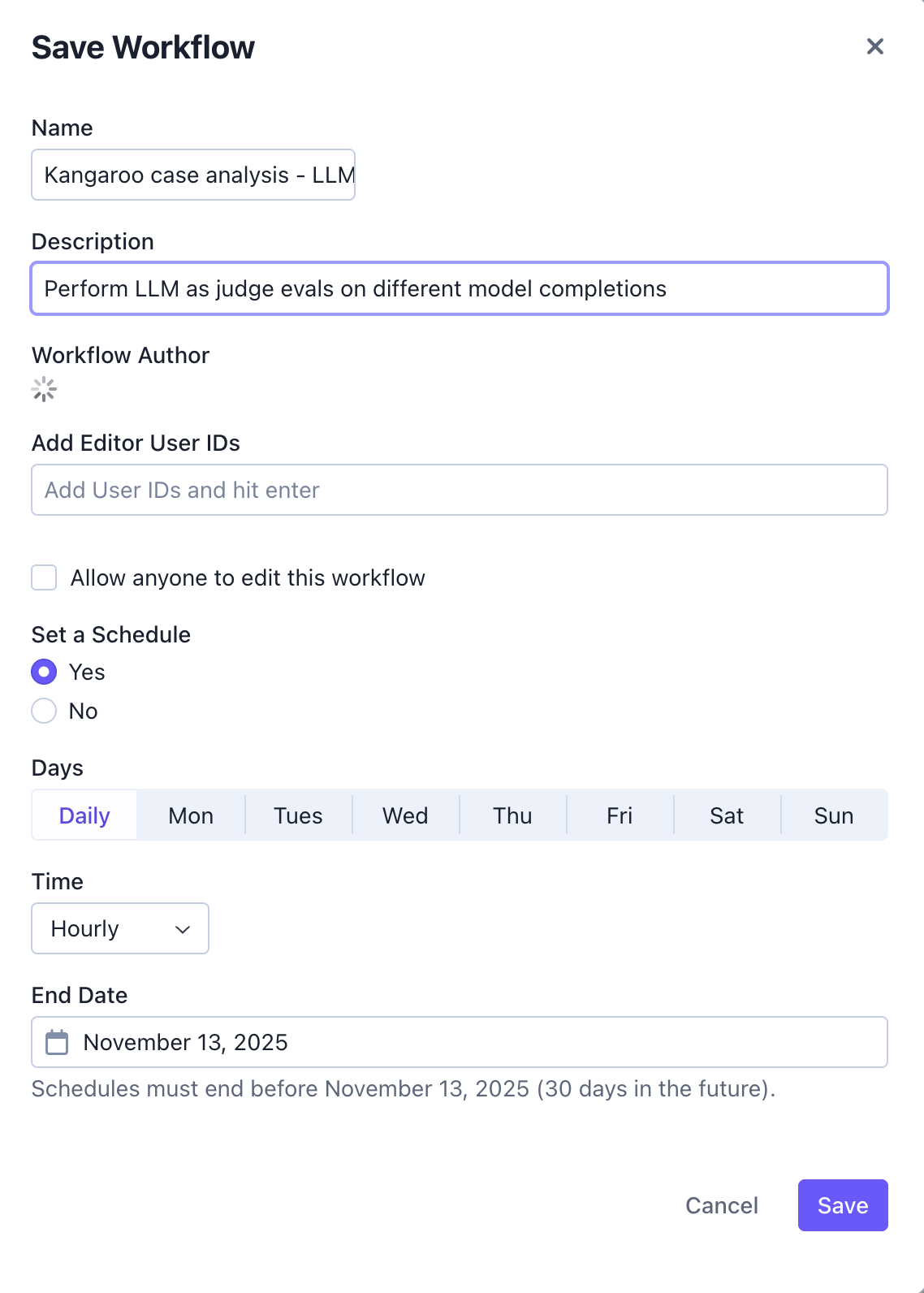
A powerful feature of Compass workflows is the ability to execute them on a schedule. Within the Save Workflow modal, toggle the Set a Schedule option and configure your desired schedule. Scheduled workflows allow you to automate repetitive tasks.
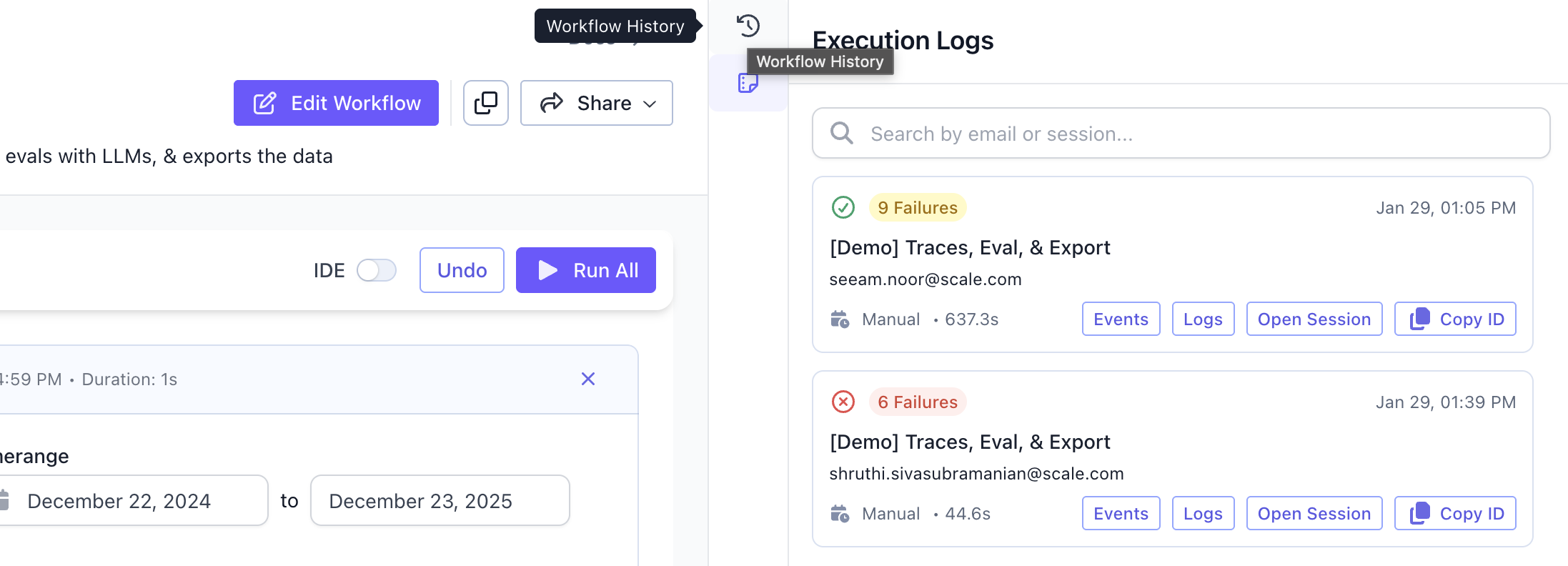
Execution logs anytime to monitor past runs. You can set up alerts to get notifications on Slack on failed automated runs. You can also check Workflow history to understand how the workflow changed across versions, the diffs, & the author responsible for each version.
What’s coming next in H1 2026
Here are core features planned on our roadmap.- [Launched] More data source support: Currently, Compass supports connection to queryable data sources. We just launched data connectors for cloud file storages like Amazon S3, Azure Blob, & Google Cloud Storage.
- [In progress] Document parsing & extraction on Compass: Utilize our
Dex&Iriscapabilities inside Compass toparseunstructured data across Docs or PDFs into structured data &extractthe information you need for your workflows. - Streaming data for workflows: Currently, Compass can import data for workflows in batches. We plan on supporting streaming data to empower real-time data processing use cases.
Creating a custom Compass card to support your specific enterprise use case on their VPC is also straightforward. If your organization has functionality requirements, please contact us.